Touch with us for Information Technology Solutions. Email us for your Query on Technical.gaurav@gmail.com.
Propellerads

05/10/2015

How to install .EXE format software on mac without using Parallel desktop / Virtual Desktop .

How to install .EXE format software on mac without using Parallel desktop / Virtual Desktop or installing windows .


Being a Mac user, I can proudly say it is one of the most powerful machine ever built for the Developers. When I switched to Mac from Windows, for 2-3 days I found it very difficult to operate Mac. But now, I can’t think of switching back considering the User-friendly GUI and my love for UNIX. Though everything is just amazing, but there’s always room for improvement and Mac is no exception to it. 
Most of the people don’t even realise that many of the apps that they used to run on Windows are not available for Mac until they hit the roadblocks. Some of them end up paying the hefty amount for Parallel Desktop and other install Windows via BootCamp. In case you don’t need complete Windows experience and just want to run some apps or programs, we have a better solution for you. Today, at itbullexperts, we are with How To Run exe Files On Mac Without Installing Windows :-

Before We Begin, You Need:

  1. Mac running on OS X 10.6  or above.
  2. WineBottler and Wine app installed on your Mac. Both the app comes in a single package, just drag both the apps to Application folder.
[Download WineBottler Package]


How To Run exe Files On Mac Without Installing Windows

Step 1: Done with installing WineBottler and Wine app? 
Step 2: Keep your .exe file that you want to run on your Mac handy.
Step 3: Now head over to the file and double click on it.I have tally.exe file .
Step 4: It’ll ask you if you want to run the .exe file directly or want to convert it to Mc bundle first, the choice is totally yours. ( Run Directly ).

Step 5: A window will pop up. Keep the settings same, but the particular settings highlighted in the screenshot totally depends upon your choice. Select any one of them according to your needs, it’ll not be a problem.
Step 6: Press the Install button, sit back and relax as Wine will do rest of the work for you. Finally, you’ll be gifted with the Mac bundled application of your favorite windows .exe file.
Thank you .


Schedule your Windows OS for shut down When you want .

How to schedule Shut down process in Windows OS .


Computer dealer panipat


Sometimes we felt the need to shut down Windows after a specified time in case of an emergency or due to some other reason, but couldn’t find a way to do so.

For this i will tute you how to schedule shutdown command :

Follow the steps :- 


  • Go to your Desktop .
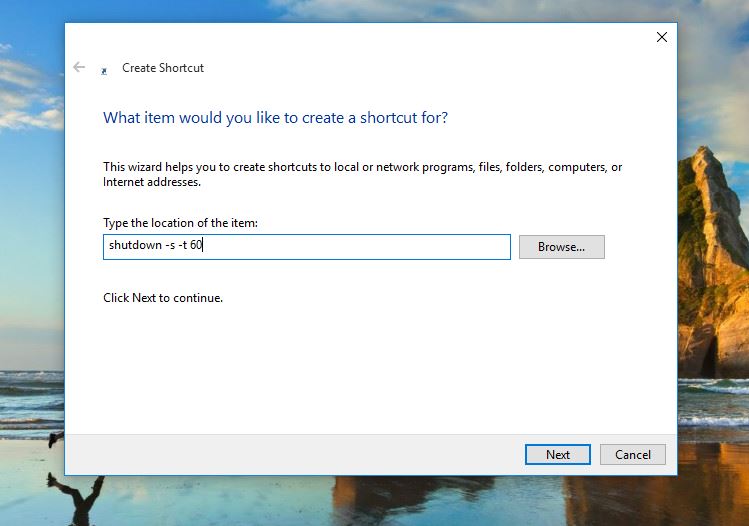
  •  Right Click and click on new short cut :- this will open a new windows asking  for location .

  • Now, you need to recall your primary math concepts.

  • We have,
1 minute = 60 seconds
1 hour = 60 minutes*60 = 3600 seconds
  • After you’ve successfully recalled the conversion of minutes to seconds. Type, shutdown –s –t 60 in the text field below ‘Type the location of this item’.
Computer dealer panipat

  • The number 60 written in the above command stands for seconds, so type the number of seconds after which you want to schedule a shutdown. For example, we tested it to shut down after 1 minute (60), and it worked successfully.


Computer dealer panipat

  •  Click Next, when you’re done typing the command.

  • In the next step, name the file Shutdown.exe. You can name it whatever you like, but don’t forget to add ‘.exe’ at the end of the file name.

Computer dealer panipat


  • Click Finish and you’re done.

  • Now, just double-click the Shutdown.exe file created on your desktop whenever you need to schedule a shutdown after a minute gap.
Through these process we manage shutdown timing as per our need .

Thank you .


Difference type of Viruses, Ransomware, Worms Trojans, Bots, Malware, Spyware etc & their means .

Difference type of Viruses, Ransomware, Worms  Trojans, Bots, Malware, Spyware etc & their means .


computer service center panipatComputer service center panipat


These days as all we knows that you laptop desktop and other it device are infected with virus .
You always think what the hell are these viruses , why i am struggling with my work .

What are these virus ?
What are the type of Viruses ?
What they means ?
How do we get rid Viruses ?


We have heard many type of virus likeViruses, Ransomware, Worms  Trojans, Bots, Malware, Spyware etc. No matter these all are viruses in one mean .These are meant to Harm , Spy , Stole of your data in different way .Basically we can say these are a designed program to hack and spy our system's , these are just a Malicious or we can say malware computer program .

Different types of malware :- 

Worms :-

These programs have the ability to replicate themselves. Their sole objective is to increase their population and transfer themselves to another computers via the internet or through storage media, all the work is done like a top secret mission hiding their movement from the user. They don’t cause any harm to the computer, their replicating nature consumes hard drive space, thus slow down the machine. Some of the notable worms are, SQL Blaster which slowed the internet for a small period of time, Code Red took down almost 359,000 websites.

Viruses: 

They also have the ability to replicate themselves, but they do damage files on the computer they attack. Their main weakness lies in the fact, they can get into action only if they have the support of a host program, otherwise they’re just like a defeated warrior. They stick themselves to songs, videos, and executable files and travel all over the internet. W32. Sfc.Sfc!mod, ABAP.Rivpas.A,Accept.3773 are some of the examples of Virus programs.

The Virus Gang:

File Viruses
Macro Viruses
Master Boot Record Viruses
Boot sector Viruses
Multi-Partite Viruses
Polymorphic Viruses
Stealth Viruses

Trojans:

 Basically, Trojans are no Viruses, and are not meant to damage or delete files on your system. Their sole task is to provide to a backdoor gateway for malicious programs or malevolent users to enter your system and steal your valuable data without your knowledge and permission. JS.Debeski.Trojan is an example of Trojan.
They are named after the ‘Trojan Horse’ tale, in which Greeks entered the city of Troy with the help of a wooden horse which was meant to be a gift, but turned out to be a sweet poison, as depicted in the movie Troy.

The Trojan Gang:

Remote Access Trojans
Data Sending Trojans
Destructive Trojans
Proxy Trojans
FTP Trojans
Security Software Disabler Trojans
Denial-Of-Service Attack Trojans

Adware: 

Adware are used to display advertisements in the programs. They generally come attached with software programs that are free to use as they are the only source of revenue for the developers of those software programs. Adware can’t be completely called as Malware as they have no intention to harm your machine, they only track what advertisements you’re more interested in, so as to display the relevant advertisements on your screens.

Spyware: 

These programs also come attached with other freeware software, track your browsing and other personal details and send it to a remote user. They can also facilitate installation of unwanted software from the internet. Unlike Adware, they work as a standalone program and do their operations silently.

Spam: 

You get very irritated when you receive unwanted emails from unknown senders, these are called Spams or junk mails. And the process of flooding the internet with the same message is called Spamming, is done for the purpose of commercial advertising. These junk mails may sometimes contain Viruses or Trojans that enter your system as soon as you open the mail.

Bots: 

Bots or Robots are automated processes that are designed to interact over the internet without the need of human interaction. They can be used for good and bad intentions. An evil minded person can create a malicious Bot that is capable of infecting the host on its own. After transmitting itself to the host device, a Bot creates a connection with central servers which act as the command centers for the infected hosts attached to that network, called Botnet.
Their skills include stealing passwords, logging keystrokes, analyzing network traffic, relay spam, launch DoS (Denial of Service) attacks and open back doors on infected hosts. These Bots can be seen as the advanced form of Worms, their infection rate and tactic is more effective than those of Worms. These malicious Bots are created after a lot of hard work done by their malignant creators.

Ransomware: 

These type of malware alter the normal operation of your machine, thus barring you to use it properly. Thereafter, these programs display warning messages asking for money to get your device back to normal working condition.


Now how can you protect your Computer :

  • Keep your system up to date.
  • Use genuine software.
  • Install an antivirus software and update it regularly.
  • Set-up a firewall, may it be custom as provided by antivirus software. Windows has an in-built firewall option in case you don’t want to use a custom firewall.
  • Never open unknown emails that generally reside in your Spam folder.
  • Never open unknown links, use online website safety checker tools if you’re not sure to open a website.
By taking these simple measures, you can effectively keep your machine free from Malware and other potential threats.


Thank you .



03/10/2015

Boost up Windows 10 with these three tricks .

Boost up Windows 10 with these three tricks .


In this post i am not talking about speed up your Photoshop , complex spread/excel sheets , or any other software , i am talking about to make fast windows 10 while startup , shutdown , accessing fast to start menu .

As we all know every second is precious for us .

Step 1:- Faster start up :-

Make windows 10 Faster startup :- You very well know that when we start our windows 10 it always demand's login password , 
but what we if we don't want to give password to our window's & if we don't want every time Windows login screen come's , we should have to stop that login scree . 
I know you will ask how we do that ? 

Follow the process :- 


A:- First of all open run command through ( Win + R ) Key's .
B:- Then type (NETPLWIZ) & Press enter .

How to stop login screen while startup
User Accounts Dialog Box .
C:- Uncheck ( User must enter a user name and password to use this computer ) :- this will stop coming login screen every time comes while starting windows .
It Will ask you to enter user name and password of your user account ( so that you can login account with entering password ).

( THAT'S ALL ) 


Step 2:- Faster Shut Down :- 


Faster Shut DownThis pic is one of the way to shutdown your windows 10 .
But one of the best & fast shutdown option  is (Shutdown shortcut command or icon ) which i will tute u in this step .


For this  

  • Just right click on empty space on desktop ,
  • Click new .
  • Click Shortcut :- 
  • Now a blank field is open type their ( %windir%\System32\shutdown.exe /s /t 0) Command .
  • Now click next & finish the setup .
An icon is created on desktop ( double click on it and it will shut down your computer fast way .

That's all for fast shut down .

Step 3:- Faster start menu .

How to make Start menu faster :- 

Windows 8 , 8.1 , 10 is animated windows , they acquire more ram while working because of animation .

Please off those animation if you want fast working ( Like opening any dialog box or software * ).


For this :-

1:- In run command type sysdm.cpl and press enter .2:- Click on advance tab ,
3:- Then setting button in performance section ,
4:- See in visual tab ,
5:- Please uncheck all animation from that section and click Apply.


Computer Service center panipat
NOW Check it You will windows dramtically work fast .