Touch with us for Information Technology Solutions. Email us for your Query on Technical.gaurav@gmail.com.
Propellerads

06/04/2016

How to use Multiple Facebook, Instagram, WhatsApp, etc Accounts on One androdi Device ? all with ROOT

IT BULL EXPERTS.

www.shopitious.com

(Purchase online quality products from here) 


How to use Multiple Facebook, Instagram, Whats-app, etc Accounts on One Device 


Having multiple accounts on your smartphone is a must, especially when you consider that people have more than one Gmail, Twitter, Instagram and other social and networking apps on their names. However, similar to Whats App, you can only have one Facebook account on your smartphone, until now.

This is the time install multiple Facebook, Instagram, Whats-app etc on your android device.With this you can separate your personal and official account to-gather on same android device. It comes via a third-party app. You can download it from Google Play, and it is completely free. The app is Parallel Space which allows you to use dual accounts on the same smartphone, and simultaneously.

That's all work will do without root.

Follow these steps to install :- 

1:- First install Parallel Space from google play :- its free of cost :-

it bull experts

2:-Open Parallel Space-multi accounts app .

it bull experts

3:-Click on Plus sign to add second whatsapp account or whatever you want add second account .

it bull experts
Select your app 
4:-Next it will do it self to add a parallel Whats app .

it bull experts
Whats-app has been added
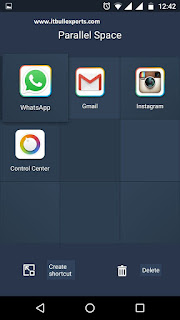
  5:- Now press Whatsapp Icon and you will see create shortcut icon, click on it and all done. Just go to your home screen and see a another Whatsapp icon , click it and assign a account to that whatsapp that you want.
It bull experts


Thank you .
IT BULL EXPERTS


04/01/2016

Difference between UEFI and Legacy Mode which we need to choose while installing the OS?

Difference between UEFI and Legacy Mode which we need to choose while installing the OS?

                               IT BULL EXPERTS


 UEFI:- This provides  fast -booting :- as you might have observed in Windows 8/8.1, Win10 also.

Firmware :- This is a piece of software that acts as an interface between the hardware(motherboard) and the Operating System. 

Legacy Mode :- refers to BIOS firmware. Basic Input/Output System(BIOS) was the first popular firmware for desktop PC introduced in 1975 by IBM for its CP/M OS. Even though it is still widely present, computers have evolved tremendously and BIOS is unable to provide advanced features of modern hardware. 

Legacy Boot is the boot process used by BIOS firmware. The firmware  maintains a list of installed storage devices that may be bootable  (Floppy Disk Drives, Hard Disk Drives, Optical Disk Drives, Tape Drives,  etc...) and enumerates them in a configurable order of priority. One  the POST procedure has completed, the firmware loads the first sector of  each of the storage targets into memory and scans it for a valid Master  Boot Record (MBR). If a valid MBR is found, the firmware passes  execution to the boot loader code found in the MBR which allows the user  to select a partition to boot from. If one is not found, it proceeds to  the next device in the boot order. If no MBR is found at all, the user  is presented with the famous "Please insert system disk


Unified Extensible Firmware Interface(UEFI):-  is the successor to BIOS. UEFI uses the GUID Partition Table (GPT) whereas BIOS uses the Master Boot Record(MBR) partitioning scheme. GPT and MBR are both formats specifying physical partitioning information on the hard disk.

UEFI boot is the boot process used by UEFI firmware. The firmware  maintains a list of valid boot volumes called EFI Service Partitions.  During the POST procedure the UEFI firmware scans all of the bootable  storage devices that are connected to the system for a valid GUID  Partition Table (GPT). Unlike a MBR, a GPT does not contain a boot  loader. The firmware itself scans the GPTs to find an EFI Service  Partition to boot from. If no EFI bootable partition is found, the  firmware can fall back on the Legacy Boot method. If both UEFI boot and  Legacy boot fail, the famous "Please insert system disk ???????" will be presented.


 Some differences are written below :-

  1. Max partition size in MBR is ~2TB whereas in UEFI it is ~9 ZetaBytes
  2. MBR can have at max 4 primary partition whereas GPT can have 128.
  3. MBR can store only one bootloader whereas GPT has a separate dedicated EFI System Partition(ESP) for storing multiple boot loaders. This is very helpful if you have two or more operating systems which require different boot loaders.
  4. UEFI offers secure boot which can prevent boot-time viruses from loading.
 

02/01/2016

How to Reset Your Forgotten Password in Windows 10 !

How to Reset Your Forgotten Password in Windows 10 !

computer service center panipat
www.itbullexperts.com


If you forgot the password for your Microsoft account and you were unable to reset the password with Microsoft’s online recovery methods, the best way is to create a new local account so you can sign in again to your Windows 10 computer. This method will also allow you to access all of your Microsoft account’s local files.

Reset Windows 10 Login Password
See the password is incorrect .


Here are the steps to reset a Windows 10 password:

1:- Firstly Boot from your windows 10 DVD or either in recovery mode if u have HP products .
Make sure that your PC setup is configured to boot from a DVD and that UEFI and Secure Boot are disabled.

how to reset windows 10 admin password
Booted from Windows 10 DVD

 2:- Now Press SHIFT + F10 to open a command prompt.


how to reset windows 10 login password
Command prompt after pressing Shift+f10
3:- No type a command to replace the file utilman.exe with cmd.exe. Before you do this, you should make a copy of utilman.exe so that you can restore it later. Note that you can only restore this file if you boot again from the Windows DVD.

A:- move c:\windows\system32\utilman.exe c:\windows\system32\utilman.exe.bak

B:- copy c:\windows\system32\cmd.exe c:\windows\system32\utilman.exe

how to reset windwos 10 login password
Backup and replace utilman.exe with cmd.exe


 4:- After replacing utilman.exe just reboot your system with this command wpeutil reboot or reboot it directly (directly rebooting may cause some error 1%)
 
how to reset windows 10 login password
Rboot windows 10 
 5:- On the Windows 10 sign-in page, click the Utility Manager icon.

computer service center panipat
Click on utility manage in red arrow key
See we had replaced utility manager with cmd.exe now it will open command prompt instead of utility manager .

how to reset windows 10 login password
Command prompt open instead of utility manager .

 6:- Now just enable Administrator account and reset it password with below command .

A:- net user administrator /active:yes ( To enable Administrator account ).
B:- net user administrator *  (To change administrator password )

computer service center panipat
Type new password for administrator account


  7:- Now see Administrator password is activated .Now you can do what ever you want ( Save data , create new user account , change existing user account or what ever you want to do < Now you are on admin account > )

 
Computer service center panipat
Administrator Account on login screen

  8:-You can now access the files associated with your Microsoft account in the C:\Users folder.

computer service center panipat
Accessing user account .


  9:- If you worked with a local account instead of a Microsoft account, you can reset your password in Computer Management. Right-click the Start button, select Computer Management, and navigate to Local Users and Groups. Right-click your local account and select Set Password.

computer service center panipat

  10 :- This will reset other account password also except online account (if you have online account first copy your data from that account and delete that account create new one )..


Thank you 


20/11/2015

Key Board Shortcuts for Windows 10

Key Board Shortcuts for Windows 10 


1:- Task View :-

To open how much task or windows u had open on your desktop use these shortcuts.
Windows Key + Tab – This opens the new Task View interface, and it stays open — you can release the keys. Only windows from your current virtual desktop will appear in the Task View list, and you can use the virtual desktop switcher at the bottom of the screen to switch between virtual desktops.


Alt + Tab –  Pressing Alt+Tab lets you switch between your open Windows. Tap Tab again to flip between windows and release the keys to select a window. Alt+Tab now uses the new Task View-style larger thumbnails. Unlike Windows Key + Tab, Alt + Tab lets you switch between open windows on all virtual desktops
2:- Copying and Pasting Text / Ctrl Key Shortcuts
Ctrl + V or Shift + Insert – Pastes text at the cursor.

Ctrl + X Cut the text and copy to clipboard .
Ctrl + C or Ctrl + Insert – Copies the selected text to the clipboard.
Ctrl + A – Select all text in the current line if the line contains text. 

3:- Window Snapping
computer service center panipat
Windows Key + Left – Snap current window to the left side of the screen.
Windows Key + Right – Snap current window the the right side of the screen.
Windows Key + Up – Snap current window to the top of the screen.
Windows Key + Down – Snap current window to the bottom of the screen.


4:- Windows + I <>  Open Windows 10 settings
5:-Windows + A <>  Open Windows 10 notifications
6:Windows + L <>  Lock your Windows 10 device
7: Windows + H <> Share content (if supported by current app)
8:-Windows + K <> Connect to wireless displays and audio devices
9:  Windows + X  <> Open Start button context menu
10:- Windows + G <> Opens the Windows 10 Game Bar to take game screenshots and record gaming videos of Windows 10 games (works in any game app, e.g. Microsoft Solitaire Collection).
11:-Windows + D <> Show Windows desktop
12: Windows + E <> Open Windows Explorer
13 :- Windows + [Left][Right][Up][Down] <> Position windows on your screen
E.g. Windows + [Left] moves the current window to the left half of your screen. If you use Windows + [Up] afterwards, the current window will be placed in the upper left quarter of your screen.

14:- Windows + [1][2][3][…] <> Open programs that are pinned to task barE.g. if first pinned program on your task bar is Windows Explorer (from left to right), the shortcut Windows + 1 opens Windows Explorer for you.
15:- Windows + R <> Run a command
16:- Windows + P <> roject a screen
17 :- Alt + Tab <> Switch to previous window
18 :- Alt + Space <> Restore, move, size, minimize, maximize or close current window. Also works like a charm for Windows 10 modern apps.
19 :- Alt + F4  <> 

(a) Close current window
b) If you’re on your Windows 10 desktop, open Power dialogue to shut down or restart Windows, put your device in sleep mode, sign out or switch the current user
Windows 10 offers improved support for Snap — known as “Aero Snap” on Windows 7. You can now snap windows vertically — one on top of each other, instead of side-by-side — or snap windows to a 2×2 grid.


20:- Win+down arrow (minimize current window)

21:- Win+up arrow (maximize current window)

22:- Win+M (minimize all windows)

23:- Win+Shift+up arrow (stretch windows to top and bottom but retain width)

24:Win+Enter (open narrator)

25:-Win+Shft+M (restore all minimize windows)

26:- Win+O (lock orientation)

27:- Win+Prtsc (screen grab to image to Pictures\Screenshots)

28:- Win+"+" (magntify in)

29:-Win+"-" (magnify out)

30:-Win+Esc (exit magnify)

31:- Win+T (cycle through taskbar apps)

32:- Win+F1 (open help support in browser? Really should open new app)

33:- Win+B (focus to notification area)

34:-Win+ (desktop peek)


35:- Win+Shift+number (open new instance of pinned taskbar item)

36:- Win+Prtsc <> (screen grab to image to Pictures\Screenshots)

37:-  Ctrl + W<>  which essentially does the same as Alt + F4

38:- Ctrl + P <> Print Command .


Thank you .
Gaurav